> For the complete documentation index, see [llms.txt](https://docs.goassay.ai/llms.txt). Markdown versions of documentation pages are available by appending `.md` to page URLs; this page is available as [Markdown](https://docs.goassay.ai/use-tools/zh/jin-jie/set-limits-and-rules.md).
# 设置限额与规则
控制智能体能花多少钱,以及能使用哪些工具和提供方。
打开 **Controls → Limits** 查看 **Spending limits**。先看智能体的 **Effective limit: what applies now**:它显示适用的最低限额及其来源设置。提高其他限额不能覆盖它。
{% hint style="info" %}
\*\*开始前:\*\*为要管理的本地应用[开启付费调用](/use-tools/zh/ru-men/turn-on-paid-calls.md)。修改链上执行的限额需要账户钱包。
{% endhint %}
| 控制项 | 适用范围 | 修改方式 |
| ------------------- | ------------------------------------------- | ------------------------------------------------------------ |
| **Account ceiling** | 所有智能体和支付密钥从余额中支付的每次及每 24 小时最高金额。 | **Change account ceiling** 会打开 **Money → Funding**。核对后用钱包签名。 |
| 智能体支出限额 | 该智能体显示的有效限额,包括支付权限,以及 Assay 的每月限额和频率限额。 | 使用 **Change spending limits**。只修改每月或频率限额时,使用 **Save**,无需签名。 |
| 支付密钥限额 | 为签署支付的特定密钥设置的每次、每 24 小时限额和到期权限。不同密钥可以有不同权限。 | 在 **Controls → Agents** 查看密钥的 **Payment limits**。修改权限需要钱包签名。 |
所有适用限制都必须通过。支付密钥不能超出账户上限,智能体也不能通过更换服务器绕过自身规则。账户上限和支付密钥权限由链上执行。每月限额、频率限额、访问规则和 **Pause all** 由 Assay 软件检查;它们是控制措施,不是钱包或合约层面的保证。
## 操作步骤
{% stepper %}
{% step %}
### 了解实际起限制作用的限额
打开 **Controls → Limits**,找到智能体。阅读 **Effective limit: what applies now** 下的每一行,包括剩余金额和旁边标明的设置。**Account ceiling** 显示各智能体共享的上限和用量。
{% endstep %}
{% step %}
### 修改智能体支出限额
为智能体选择 **Change spending limits**。按需修改 **Most per call**、**Most per 24 hours** 或 **Most per month**。修改支付权限前核对到期时间。
只修改 Assay 的每月或频率设置时,使用 **Save**。修改支付权限时,使用 **Sign and save (free)** 并批准对应钱包请求。如果需要先提高账户上限,请按 **Change account ceiling** 操作,并核对单独的签名。这些签名无需网络手续费。
每月限额在每月 1 日 00:00 UTC 重置。支付权限的 24 小时窗口与自然日不同。降低已签署的限额可能需要一段时间才能完全生效;签名前阅读延迟和仍在结算的付款信息。
{% endstep %}
{% step %}
### 选择智能体可使用的内容
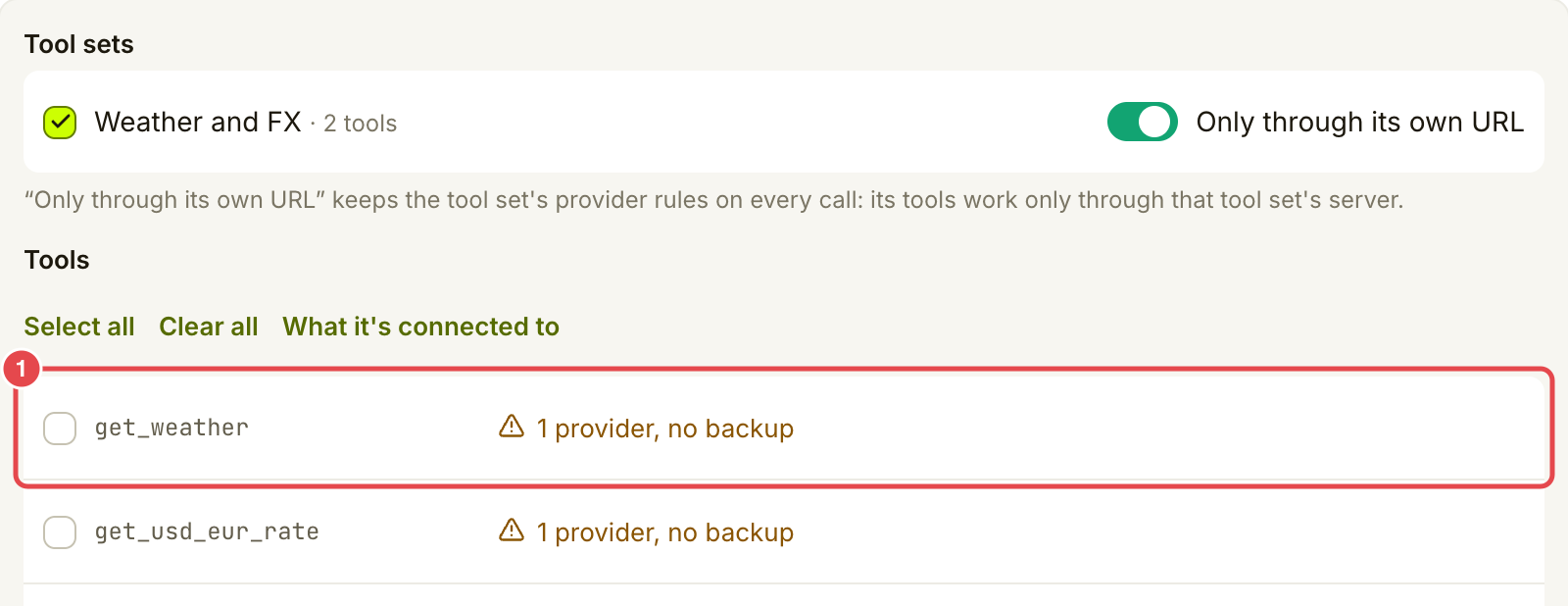
找到 **What \[your agent] can use**。选择 **Only these tool sets and tools** 缩小访问范围,再选择允许的工具集或工具。**Everything** 也允许以后新增的工具。
无论智能体使用哪个服务器,这些限制都适用。
选择要允许的工具;此示例尚未保存。
**Shortcut: only what's connected** 会根据智能体的连接保存限制。只要有一个连接是 **Everything**,此选项就不可用。为应用选择工具集与限制智能体是不同的操作;参阅[创建与分享工具集](/use-tools/zh/jin-jie/create-and-share-toolsets.md)。
{% endstep %}
{% step %}
### 保存提供方规则
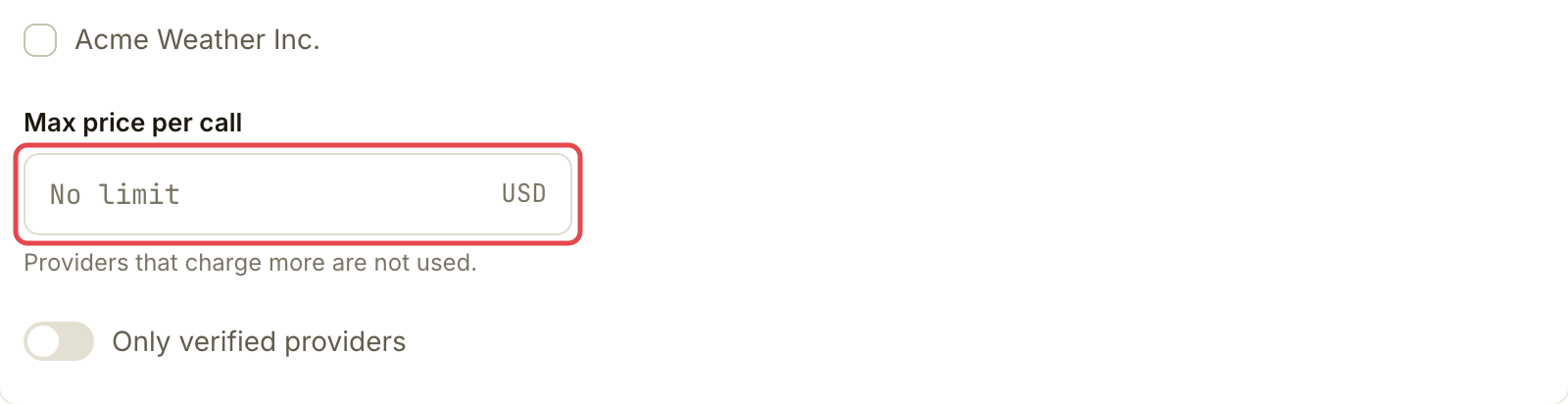
在 **Provider limits** 下,使用 **Never use these providers** 选择要排除的提供方,设置 **Max price per call**,或启用 **Only verified providers**。阅读 **Result per tool**,检查各工具是否仍有提供方可用。选择 **Save changes**。无需钱包签名。
提供方限制适用于此智能体的每次调用。
Save changes 会将选择应用于后续调用。
{% endstep %}
{% step %}
### 需要时暂停所有付费调用
需要紧急停止时,使用页面顶部或顶栏中的 **Pause all paid calls**。核对确认内容后选择 **Pause all paid calls**。无需钱包签名。免费调用仍可使用;先前费用和欠款不变。
要重新允许付费调用,在暂停横幅中使用 **Resume**,并确认 **Resume paid calls**。其他限额、欠款和提现暂停仍适用。
{% endstep %}
{% endstepper %}
## 确认是否成功
页面显示预期的有效支出限额和已保存的访问摘要。暂停后应看到暂停横幅。变更会影响后续调用;依赖钱包变更前,请确认其结果和延迟。
## 遇到问题时
| 你看到的情况 | 处理方式 |
| -------------------------------------------------- | -------------------------------------------------------------------------------- |
| **Your monthly limits could not be read just now** | 稍后重试。现有限额仍适用。 |
| 另一个智能体的每月设置不可用 | 只能为你登录所用的智能体设置每月和 **Advanced** 限额。阅读该智能体卡片上的说明。 |
| 提高限额后仍无法调用 | 重新检查有效限额、账户上限和该支付密钥的权限。 |
| 没有剩余可用提供方 | 只放宽你确实想修改的限制,或选择另一个工具。 |
| 恢复后付费调用仍停止 | 按[处理暂停或被拒的付款](/use-tools/zh/chu-xian-wen-ti-shi/fix-a-payment-problem.md)排查其他原因。 |
可选:频率限额和旧规则
在支出侧栏中展开 **Advanced: rate limits**,查看 **Calls per minute**、**Calls per hour** 和 **Spend per hour**。这些由 Assay 检查。被拒绝的尝试也计入每分钟调用限额。如果只修改这些设置,保存无需钱包签名。
仅在仍有旧限制时才显示 **Older rules still checked**。保存当前支出限额会替换旧的智能体预算。另有一条拒绝超过某金额调用的规则会继续保留,直到你使用 **Remove it**、核对变更并确认 **Remove the rule**。目前没有针对单次被拒调用的网页批准流程。
Assay 本地应用也执行自己的限额(默认每次调用 $0.50、每 24 小时 $5);浏览器中的变更不会提高这些限额。要修改它们,请在终端中运行 `npx -y @goassay-ai/mcp limits set --per-call 1 --per-day 10`。
## 进一步了解
* [处理暂停或被拒的付款](/use-tools/zh/chu-xian-wen-ti-shi/fix-a-payment-problem.md)
* [管理提醒与查看账户记录](/use-tools/zh/ri-chang-shi-yong/alerts-and-account-history.md)
## 下一步
* [管理智能体、已连接应用与支付密钥](/use-tools/zh/jin-jie/manage-agents-apps-and-keys.md)
---
# Agent Instructions
This documentation is published with GitBook. GitBook is the documentation platform designed so that both humans and AI agents can read, navigate, and reason over technical content effectively. Learn more at gitbook.com.
## Querying This Documentation
If you need additional information that is not directly available in this page, you can query the documentation by asking a question.
Perform an HTTP GET request on the following URL with the `ask` and `goal` query parameters:
```
GET https://docs.goassay.ai/use-tools/zh/jin-jie/set-limits-and-rules.md?ask=&goal=
```
`ask` is the immediate question: it should be specific, self-contained, and written in natural language.
`goal` is what the user is ultimately trying to achieve, the reason they need the answer. Sharing it helps GitBook give you a better, more relevant answer. A goal is most helpful when it describes the outcome the user wants rather than restating the question. For example, with `ask=how do I create an API token`, a goal like `automate deployments from our CI pipeline` lets GitBook tailor the answer to that use case.
The response will contain a direct answer to the question and relevant excerpts and sources from the documentation.
Use this mechanism when the answer is not explicitly present in the current page, you need clarification or additional context, or you want to retrieve related documentation sections.