> For the complete documentation index, see [llms.txt](https://docs.goassay.ai/llms.txt). Markdown versions of documentation pages are available by appending `.md` to page URLs; this page is available as [Markdown](https://docs.goassay.ai/use-tools/get-started/connect-your-ai-app.md).
# Connect your AI app
Add Assay to your AI app and approve its connection in your browser.
Connect once so your AI app can find and call Assay tools. Local apps use the Assay local app (`@goassay-ai/mcp`), which runs on your computer. They sign in through your browser; you do not put an API key in their configuration.
{% hint style="info" %}
**Before you start:** [Create your account](/use-tools/get-started/create-your-account.md). For a local app, install Node.js 20 or later on the computer where the app runs.
{% endhint %}
**Choose an app that can pay if you want paid tools.** Claude Code, Codex, Cursor, VS Code, Windsurf, Gemini CLI and Claude Desktop can pay through the Assay local app. The hosted connectors in claude.ai and ChatGPT make free calls only. **My own code** uses an API key to let your program call tools. To pay, your program must also sign payments, which the Developers docs cover. For the basic paid-tools path, use a local app.
## Steps
{% stepper %}
{% step %}
### Open Connect
Go to **Controls → Connect**. Choose **Connect a tool set or only some tools** to check that **Everything** is selected, then close the sheet to continue with the default connection to Assay's tools through one server.
Keep Everything selected.
{% endstep %}
{% step %}
### Add Assay to your app
Under **Which app do you use?**, select your app. Follow its tab below. For paid calls, use the local install rather than the **Free tools only, with no install** alternative.
Choose your AI app.
The local install uses the published package `@goassay-ai/mcp`.
{% tabs %}
{% tab title="Claude Code" %}
Run this command in a terminal on your computer:
```sh
claude mcp add --scope user assay -- npx -y @goassay-ai/mcp --name assay
```
Start a new Claude Code session so it loads Assay.
{% endtab %}
{% tab title="Codex" %}
Run this command in a terminal on your computer:
```sh
codex mcp add assay -- npx -y @goassay-ai/mcp --name assay
```
Restart Codex so it loads Assay.
{% endtab %}
{% tab title="Cursor" %}
Choose **Add to Cursor** and accept the installation in Cursor. Reload Cursor so it loads Assay. If the button does nothing, choose **Copy the config instead**, paste it into `~/.cursor/mcp.json` and reload Cursor.
Add Assay to Cursor.
{% endtab %}
{% tab title="VS Code" %}
Choose **Add to VS Code** and accept the installation, or run the command shown on **Connect** in a terminal. Restart VS Code if Assay's tools do not appear.
{% endtab %}
{% tab title="Windsurf" %}
Copy the configuration shown on **Connect** into `~/.config/devin/mcp_config.json`. If the file already contains other servers, keep them and add the Assay entry. Restart Windsurf.
{% endtab %}
{% tab title="Gemini CLI" %}
Run this command in a terminal on your computer:
```sh
gemini mcp add --scope user assay npx -y @goassay-ai/mcp --name assay
```
Restart Gemini CLI so it loads Assay.
{% endtab %}
{% tab title="Claude Desktop" %}
In Claude Desktop, open **Settings → Developer → Edit config**. Add the configuration shown on **Connect**, keeping any other servers already in the file. Restart Claude Desktop.
{% endtab %}
{% tab title="claude.ai" %}
In claude.ai, open **Settings → Connectors → Add custom connector**. Paste the URL shown on Assay's **Connect** page. Leave **Show paid tools too (they will explain how to pay)** unchecked. Choose **Connect** to open Assay's approval window.
This hosted connection makes free calls only. It cannot hold the payment key needed to pay.
{% endtab %}
{% tab title="ChatGPT" %}
In ChatGPT's settings, find **Connectors** and add a custom connector. Paste the URL shown on Assay's **Connect** page. Leave **Show paid tools too (they will explain how to pay)** unchecked. Choose **Connect** to open Assay's approval window.
This hosted connection makes free calls only. It cannot hold the payment key needed to pay.
{% endtab %}
{% tab title="My own code" %}
This option is for a program you build, rather than an AI app installed above. Choose **Use an API key instead**, then **Create**. Save the full key when it appears; it is shown only once. Use the connection details shown on the page in your program.
The API key lets your program call tools. To pay for calls, your program must sign its own payments; the Developers docs cover how to do this. For the basic paid-tools path in these guides, use one of the local apps instead. If you are integrating your own program, use its API key rather than the browser sign-in steps below.
{% endtab %}
{% endtabs %}
{% endstep %}
{% step %}
### Ask your local app to sign in
In a local app, ask the AI:
> Sign in to Assay.
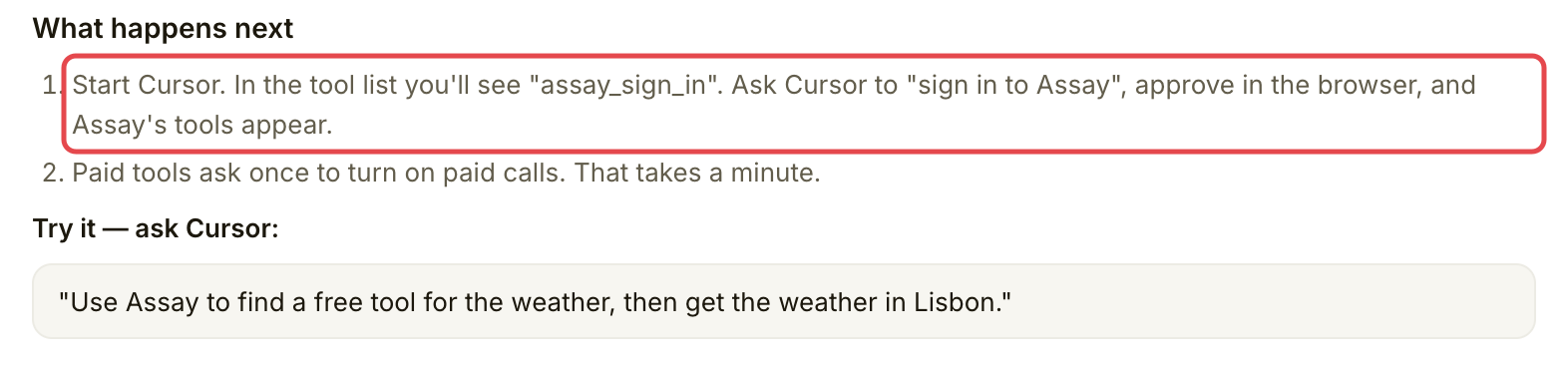
The app exposes **assay\_sign\_in**, which opens sign-in in your browser. Allow the app to run that tool if it asks. Hosted connectors have already opened the approval window, so continue there.
Ask your app to sign in to Assay.
{% endstep %}
{% step %}
### Approve the connection
On **Connect an app to Assay**, check that you are signed in to the right account and that **Agent** is the agent you want to use. Keep the suggested **Name**, then choose **Approve**. (**Approve and set limits** also opens this agent's limits; you can skip it.)
Return to your AI app. Assay's tools should now be available. This connection approval does not turn on paid calls; you will approve spending separately after the free test.
{% endstep %}
{% endstepper %}
## Check it worked
Your app can see Assay tools after sign-in. **Connect → Is it working?** may still say **Waiting for the first call… (updates by itself)**. That is expected until you call a tool.
## If something goes wrong
| You see | Do this |
| -------------------------------------------- | -------------------------------------------------------------------------------------------- |
| No **assay\_sign\_in** tool in a local app | Check that Node.js 20 or later is installed and restart the AI app after adding Assay. |
| Local app asks you to paste an Assay API key | Use the local install shown on **Connect**, then ask the app to sign in through the browser. |
| Approval shows the wrong account | Choose **Sign out** in the approval window and sign in with your Assay account. |
| Hosted app cannot pay | Hosted connectors are free-only. Use a local app from the picker for paid tools. |
## Next
* [Make your first free call](/use-tools/get-started/make-your-first-call.md)
---
# Agent Instructions
This documentation is published with GitBook. GitBook is the documentation platform designed so that both humans and AI agents can read, navigate, and reason over technical content effectively. Learn more at gitbook.com.
## Querying This Documentation
If you need additional information that is not directly available in this page, you can query the documentation by asking a question.
Perform an HTTP GET request on the following URL with the `ask` and `goal` query parameters:
```
GET https://docs.goassay.ai/use-tools/get-started/connect-your-ai-app.md?ask=&goal=
```
`ask` is the immediate question: it should be specific, self-contained, and written in natural language.
`goal` is what the user is ultimately trying to achieve, the reason they need the answer. Sharing it helps GitBook give you a better, more relevant answer. A goal is most helpful when it describes the outcome the user wants rather than restating the question. For example, with `ask=how do I create an API token`, a goal like `automate deployments from our CI pipeline` lets GitBook tailor the answer to that use case.
The response will contain a direct answer to the question and relevant excerpts and sources from the documentation.
Use this mechanism when the answer is not explicitly present in the current page, you need clarification or additional context, or you want to retrieve related documentation sections.