> For the complete documentation index, see [llms.txt](https://docs.goassay.ai/llms.txt). Markdown versions of documentation pages are available by appending `.md` to page URLs; this page is available as [Markdown](https://docs.goassay.ai/use-tools/everyday-use/check-your-spending.md).

# Check your spending

See where your money went and open a receipt for an individual call.

Use **Spend** for totals and **Calls** for individual tool calls. A receipt explains what happened to one call and its money.

## Steps

{% stepper %}
{% step %}

### Choose a period

Open **Activity → Spend**. Choose **Last 24 hours**, **Last 7 days** or **Last 30 days**. The default is **Last 7 days**.

The headline shows what you spent and what was not charged. When there is earlier spending to compare, it also shows the change against the previous period of the same length.

<figure><img src="https://141356682-files.gitbook.io/~/files/v0/b/gitbook-x-prod.appspot.com/o/spaces%2FAhFBOJnejgrUxXsfscIS%2Fuploads%2Fgit-blob-dda057a3219539cc01fdbc4ed6fca861ae71b09b%2Fcheck-your-spending-1.png?alt=media" alt="Spend header with the period selector marked"><figcaption><p>Choose the period to review.</p></figcaption></figure>
{% endstep %}

{% step %}

### See where it went

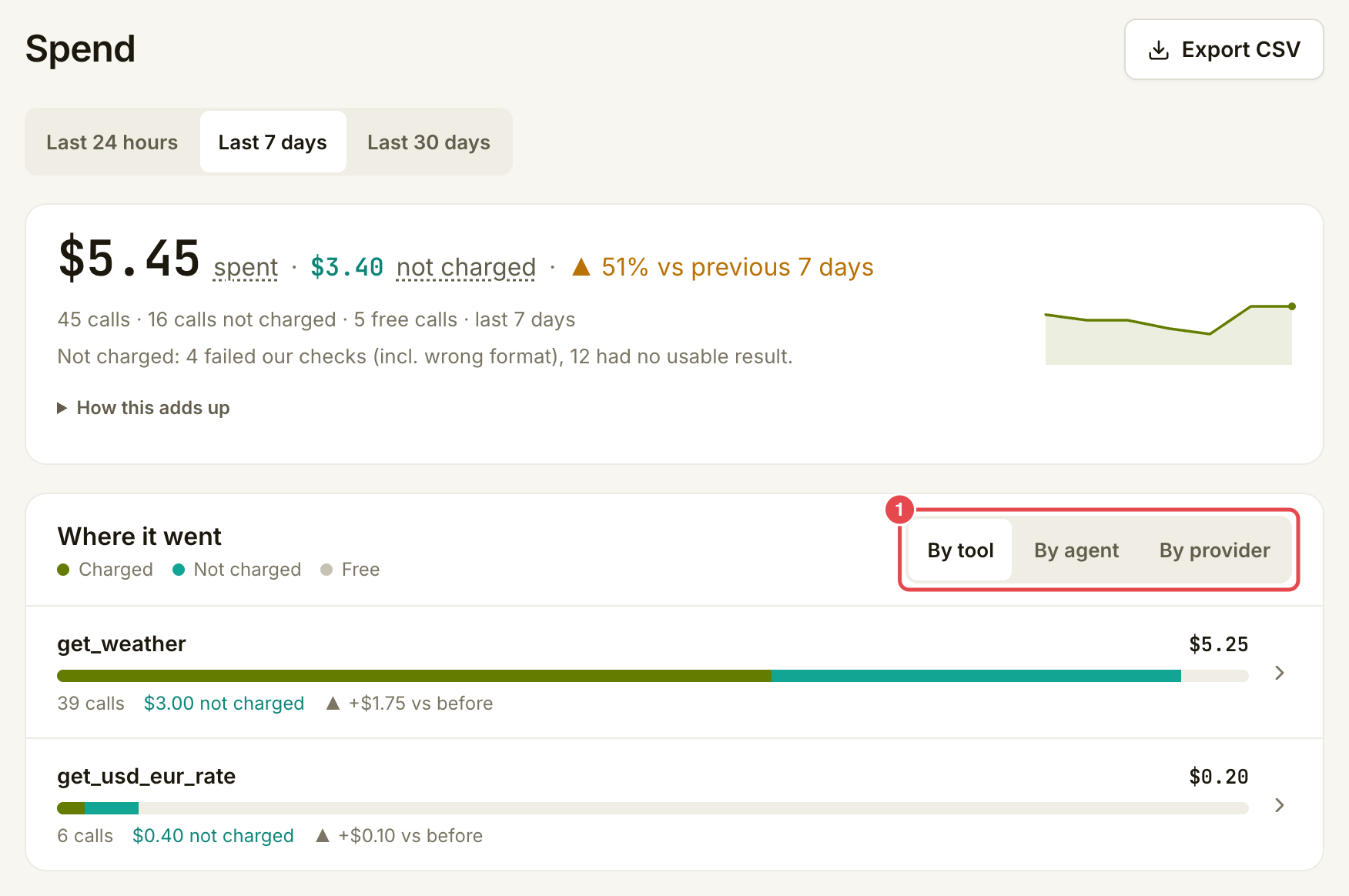
Under **Where it went**, switch between **By tool**, **By agent** and **By provider**. These tabs regroup the same period's spending; they do not change the total. **By agent** can separate an agent's named connected apps.

Open **How this adds up** to compare listed prices with charged, not charged, owed and in-progress amounts.

<figure><img src="https://141356682-files.gitbook.io/~/files/v0/b/gitbook-x-prod.appspot.com/o/spaces%2FAhFBOJnejgrUxXsfscIS%2Fuploads%2Fgit-blob-a62e31374ecc2796807b0224bec136b5bccfd7e7%2Fcheck-your-spending-2.png?alt=media" alt="Spend totals and the complete Where it went breakdown with grouping tabs"><figcaption><p>Switch the grouping to trace your spending.</p></figcaption></figure>
{% endstep %}

{% step %}

### Find a call

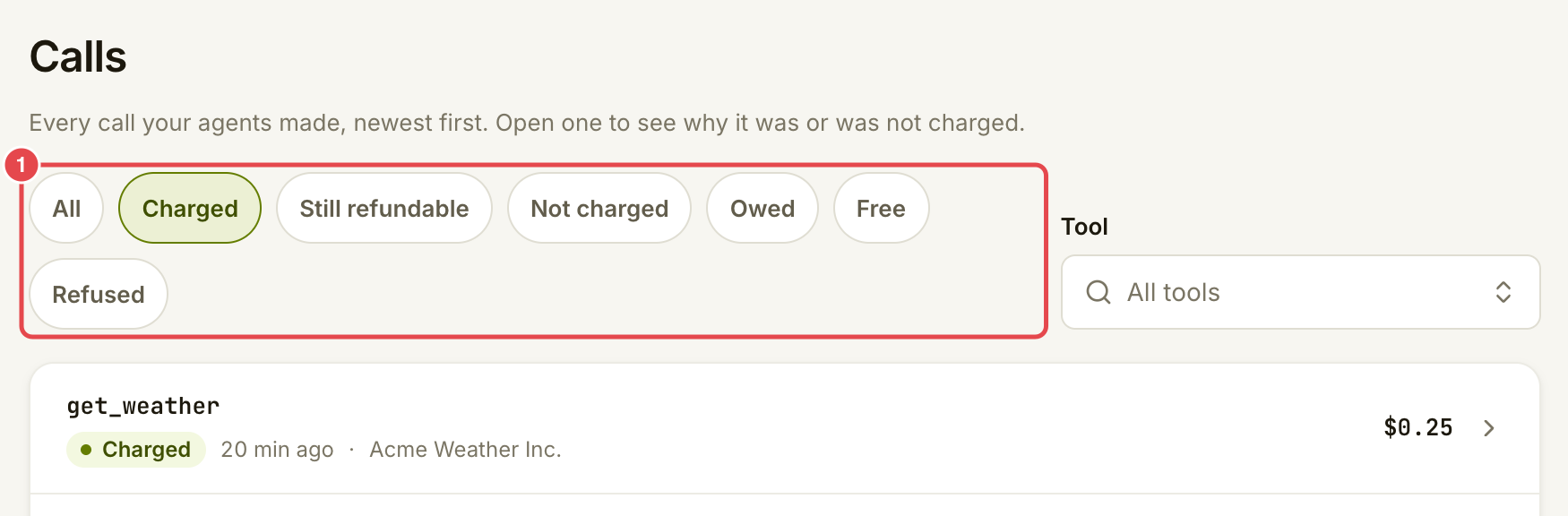
Open **Activity → Calls**, or select a tool row on **Spend** to see its calls. Use **Tool** and the **All**, **Charged**, **Still refundable**, **Not charged**, **Owed**, **Free** or **Refused** filters.

**Activity → Not charged** lists every call you were not charged for, with the reason.

Calls appear newest first. **Show more calls** loads older calls. Refused attempts have their own explanation because the tool call was stopped before a charge.

<figure><img src="https://141356682-files.gitbook.io/~/files/v0/b/gitbook-x-prod.appspot.com/o/spaces%2FAhFBOJnejgrUxXsfscIS%2Fuploads%2Fgit-blob-3a6c65ca648261d12bb2d9f3366285eb06432fd2%2Fcheck-your-spending-3.png?alt=media" alt="Calls page showing filters and a charged weather call"><figcaption><p>Filter the list, then open a call.</p></figcaption></figure>
{% endstep %}

{% step %}

### Open its receipt

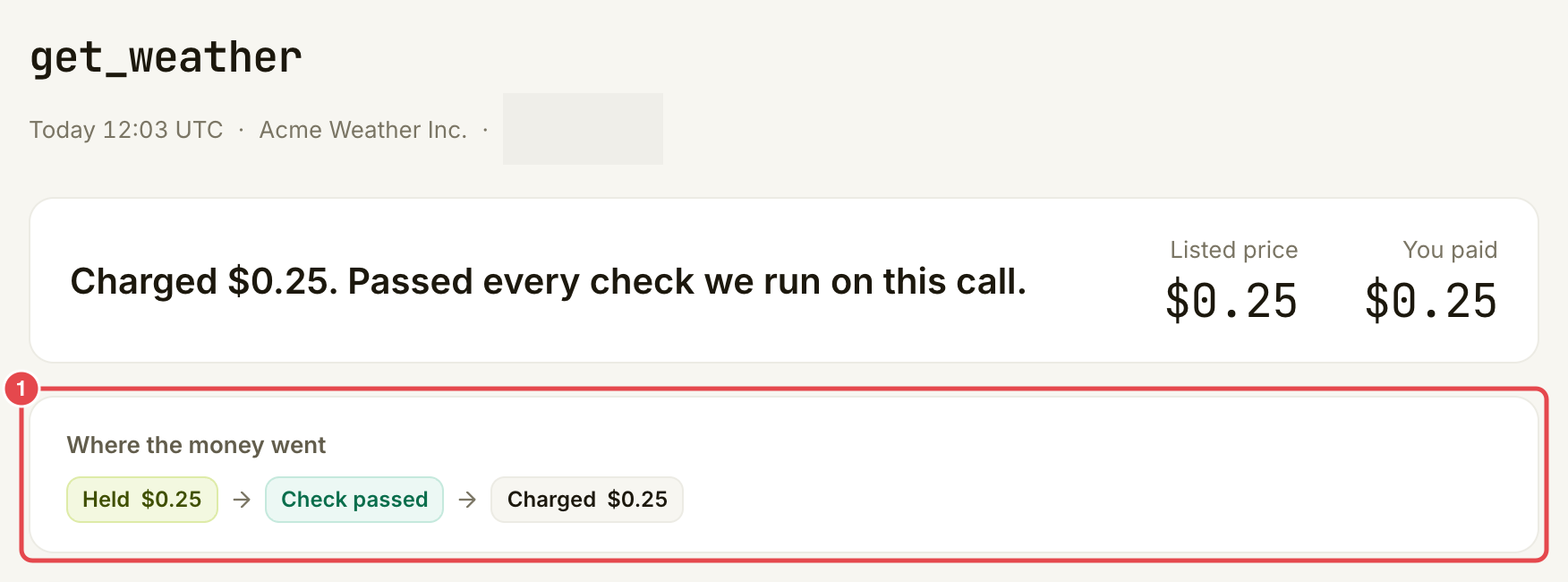
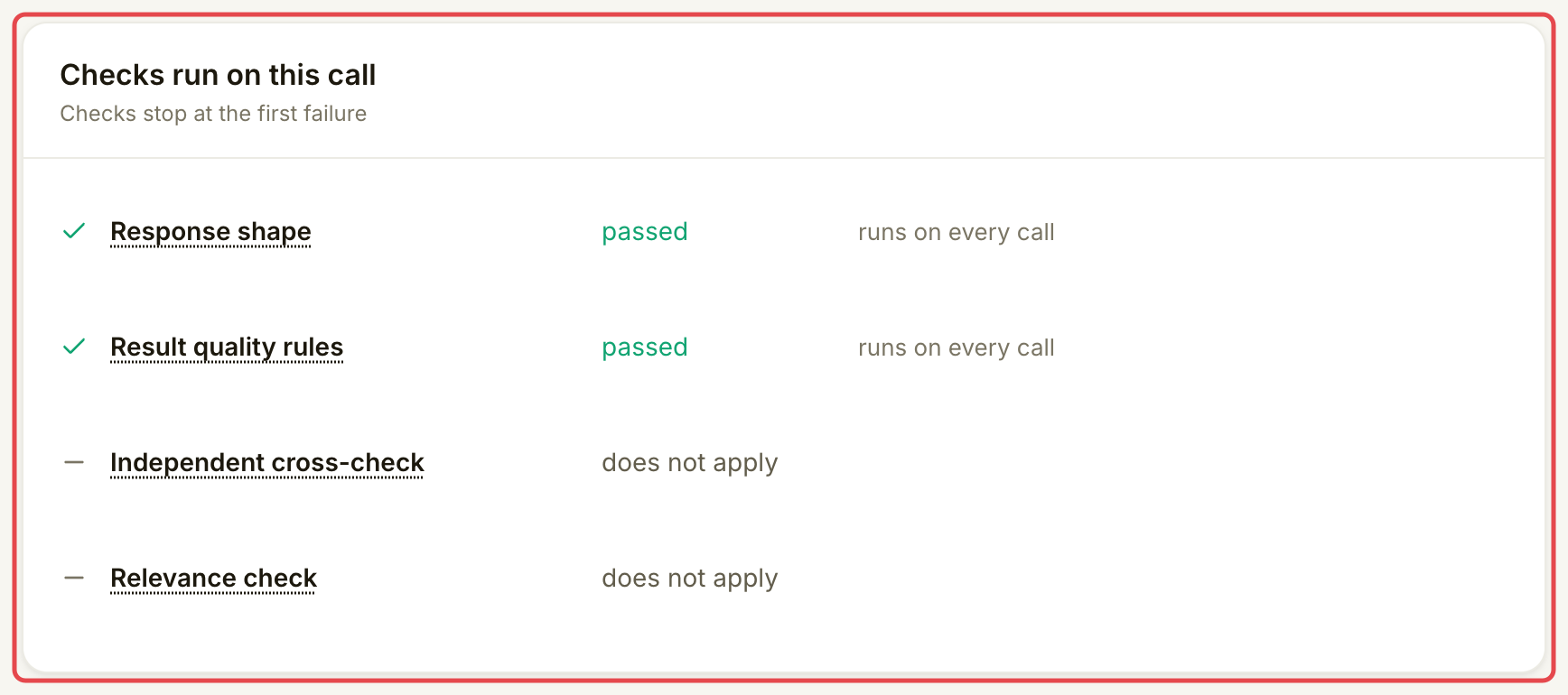
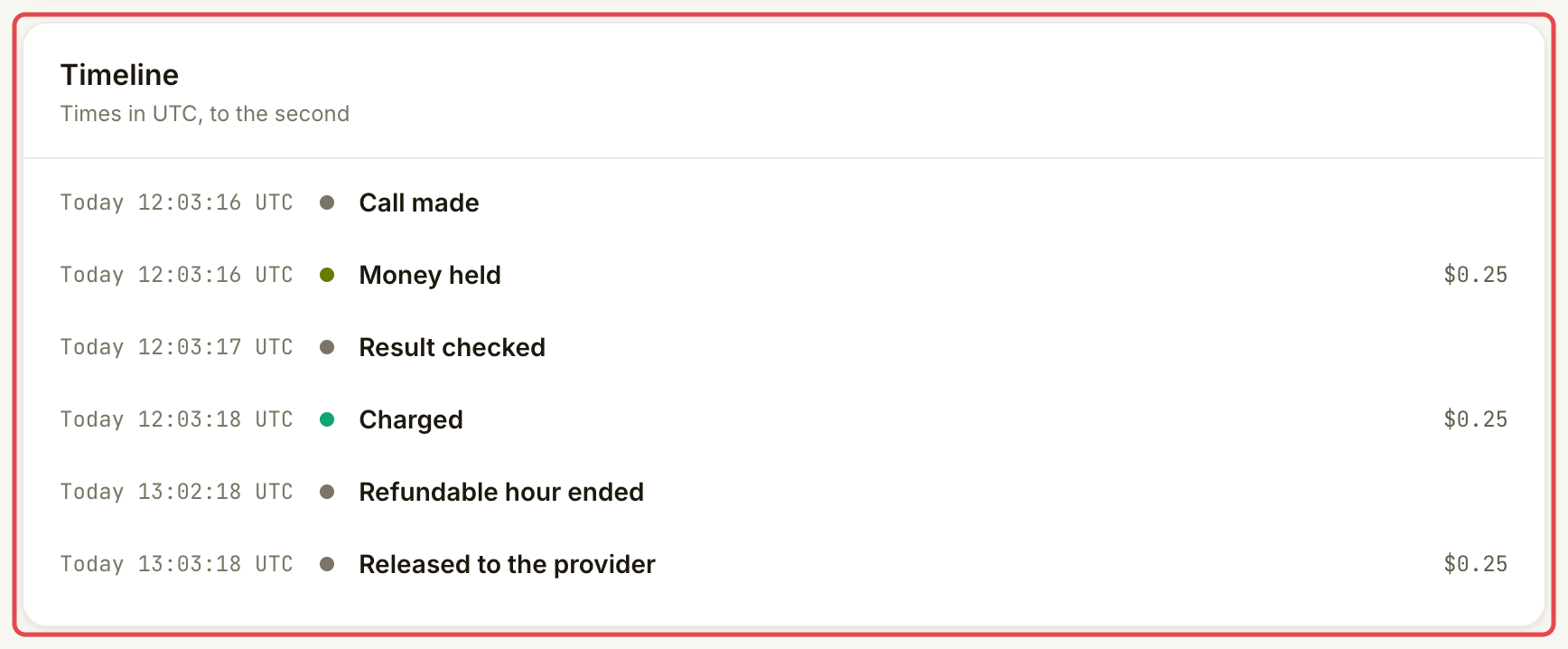
Open a call's row. Compare **Listed price** with **You paid** and any **Not charged** or **Owed** amount. Read **Where the money went**, **Checks run on this call** and **Timeline** for the reason and sequence of events. Times are shown in UTC.

<figure><img src="https://141356682-files.gitbook.io/~/files/v0/b/gitbook-x-prod.appspot.com/o/spaces%2FAhFBOJnejgrUxXsfscIS%2Fuploads%2Fgit-blob-0dbe4d0d9223da981b245170bb1cf3d187228acc%2Fcheck-your-spending-4.png?alt=media" alt="Receipt showing the charge and complete money flow, with call reference blurred"><figcaption><p>Follow the money on the receipt.</p></figcaption></figure>

<figure><img src="https://141356682-files.gitbook.io/~/files/v0/b/gitbook-x-prod.appspot.com/o/spaces%2FAhFBOJnejgrUxXsfscIS%2Fuploads%2Fgit-blob-89d3686a57b3766e287d9e9b94ea43e2059b27dc%2Fcheck-your-spending-5.png?alt=media" alt="Complete Checks run on this call card showing which checks passed"><figcaption><p>Read which checks ran.</p></figcaption></figure>

<figure><img src="https://141356682-files.gitbook.io/~/files/v0/b/gitbook-x-prod.appspot.com/o/spaces%2FAhFBOJnejgrUxXsfscIS%2Fuploads%2Fgit-blob-3104557dcfa22741c87dfdabe15d72b0070ddd6e%2Fcheck-your-spending-6.png?alt=media" alt="Complete receipt timeline showing the hold, charge and release to the provider"><figcaption><p>Read the sequence in UTC. The refund deadline includes a one-minute filing margin before the hour ends.</p></figcaption></figure>
{% endstep %}
{% endstepper %}

## What the money labels mean

| Label               | What it means for your money                                                                                                                                                                                         |
| ------------------- | -------------------------------------------------------------------------------------------------------------------------------------------------------------------------------------------------------------------- |
| **Charged**         | This amount counts as paid for the call. Read the receipt for which checks ran; a charge does not mean every possible check ran.                                                                                     |
| **Not charged**     | You paid nothing for this call, or its charge was refunded. Any reserved money is released to your Assay balance, not sent to your wallet. This is a paid call that ended without a charge, rather than a free call. |
| **Free**            | The call cost zero. It used a free tool or one of the tool's free calls (its **free tier**).                                                                                                                         |
| **Checking** / held | The call is unfinished. Money is reserved and cannot be spent or withdrawn meanwhile; it is charged or released when the call finishes. This is not a final charge.                                                  |
| **Owed**            | The call ran, but its payment could not be collected. It is still your debt, and paid calls pause until you settle it. An owed call not settled within 30 days shows **Written off**; you still owe it.              |
| **Refused**         | Assay stopped the attempt before it reached a provider. Nothing was held or charged. See [Fix a paused or refused payment](/use-tools/when-something-goes-wrong/fix-a-payment-problem.md).                           |

A payment held for a bad-result report is separate from a call still being checked. The receipt tells you when its refund window ends and whether a report is already open.

## Check it worked

You can trace a total on **Spend** to the relevant calls and read the reason on each receipt. A reserved amount is separate from a final charge or an unpaid debt.

## If something goes wrong

| You see                            | Do this                                                                                                                   |
| ---------------------------------- | ------------------------------------------------------------------------------------------------------------------------- |
| **No spend in this period**        | Choose a longer period or open **Calls** to check for free calls.                                                         |
| An expected call is missing        | Set **Tool** to **All tools**, choose **All**, then use **Show more calls**.                                              |
| **Checking**                       | Wait for the call to finish before treating the amount as final.                                                          |
| **Owed**                           | Use the settlement instructions in the banner at the top of the app. Adding funds alone does not sign the unpaid payment. |
| **Your spend could not be loaded** | Retry the page. An error does not mean your spending is zero.                                                             |

## Next

* [Statements and exports](/use-tools/everyday-use/statements-and-exports.md)


---

# Agent Instructions
This documentation is published with GitBook. GitBook is the documentation platform designed so that both humans and AI agents can read, navigate, and reason over technical content effectively. Learn more at gitbook.com.

## Querying This Documentation
If you need additional information that is not directly available in this page, you can query the documentation by asking a question.

Perform an HTTP GET request on the following URL with the `ask` and `goal` query parameters:

```
GET https://docs.goassay.ai/use-tools/everyday-use/check-your-spending.md?ask=<question>&goal=<user_goal>
```

`ask` is the immediate question: it should be specific, self-contained, and written in natural language.
`goal` is what the user is ultimately trying to achieve, the reason they need the answer. Sharing it helps GitBook give you a better, more relevant answer. A goal is most helpful when it describes the outcome the user wants rather than restating the question. For example, with `ask=how do I create an API token`, a goal like `automate deployments from our CI pipeline` lets GitBook tailor the answer to that use case.

The response will contain a direct answer to the question and relevant excerpts and sources from the documentation.

Use this mechanism when the answer is not explicitly present in the current page, you need clarification or additional context, or you want to retrieve related documentation sections.