> For the complete documentation index, see [llms.txt](https://docs.goassay.ai/llms.txt). Markdown versions of documentation pages are available by appending `.md` to page URLs; this page is available as [Markdown](https://docs.goassay.ai/use-tools/advanced/manage-agents-apps-and-keys.md).

# Manage agents, connected apps and payment keys

Review an agent's connections and control which apps and keys can call tools or pay.

An **agent** is the identity Assay uses to group calls and apply rules. A **connected app** is an AI app signed in to use that agent. A **payment key** is the separate key your local app uses to sign payments within permission you approve in your wallet. Disconnecting an app and stopping a payment key are different actions.

An **API key** lets your own program call tools as an agent. It is a secret you copy into that program; it is not the payment key and does not by itself allow payments.

## Steps

{% stepper %}
{% step %}

### Find your agent

Open **Controls → Agents**. The page is titled **Agents & keys**. Find the agent by name and read its status. Under **Keys**, each **Signed in from** row identifies a connected app; API keys appear here too. Read the last-used information and the payment-key state beside the relevant row.

Each account has one agent, created when you first sign in (see [Create your account](/use-tools/get-started/create-your-account.md)). A new API key adds a key to that agent; it does not create another agent.

<figure><img src="https://141356682-files.gitbook.io/~/files/v0/b/gitbook-x-prod.appspot.com/o/spaces%2FAhFBOJnejgrUxXsfscIS%2Fuploads%2Fgit-blob-e72aa8e8e775053dc0fae2d873267792f3ee12b5%2Fmanage-agents-apps-and-keys-1.png?alt=media" alt="Connected app row showing Signed in from and no payment key"><figcaption><p>Read where the app signed in from and whether it has a payment key.</p></figcaption></figure>
{% endstep %}

{% step %}

### Give the agent a useful name

Choose **Rename** beside the agent's name. Edit the name and choose **Save**. This changes its label; it does not create a new identity or change its connections or limits.

<figure><img src="https://141356682-files.gitbook.io/~/files/v0/b/gitbook-x-prod.appspot.com/o/spaces%2FAhFBOJnejgrUxXsfscIS%2Fuploads%2Fgit-blob-53f05ae4c2062b1fd44639a61472cb69c41422b1%2Fmanage-agents-apps-and-keys-2.png?alt=media" alt="Agent rename form with its name field and Save marked"><figcaption><p>Use a name you can recognise in spending and connection views.</p></figcaption></figure>
{% endstep %}

{% step %}

### Disconnect an app you no longer use

Under **Keys**, find the app's **Signed in from** row and choose **Revoke**. Review the named app before confirming. Revoking stops that app's access; it must sign in again to reconnect. Other app connections are separate.

If it has an active payment key, keep **Also stop its payment key on chain** selected when offered. Follow **Revoke and sign**, or **Revoke, then stop its key**, and complete the wallet step. Revoking app access alone can leave payment permission active on chain.

If signing fails or you leave payment permission active, the row keeps **Stop it**. Use it and complete the signature. A failed chain check means the payment key may still be active; it does not prove that payments are off.
{% endstep %}

{% step %}

### Stop a payment key paying

To stop payments while keeping free calls working, find that key's **Stop it paying** action. Review any payments still settling, then choose **Sign to stop paying (free)** and complete the wallet signature. Wait for the result and any delay shown.

The payment key loses permission to sign new payments from your balance. The app can still make free calls. Calls already made still need settling and payment; this does not refund earlier calls or withdraw funds.
{% endstep %}

{% step %}

### Let the same key pay again

For a key with expired permission, choose **Let it pay again**; when permission is absent, choose **Let it pay**. Check the key fingerprint against your app, review the spending limits and expiry, and complete the wallet signature. If the account ceiling needs raising too, review both requests.

If the app itself was revoked, reconnect it through [Connect your AI app](/use-tools/get-started/connect-your-ai-app.md) first. For an app with no payment key yet, use its setup link in [Turn on paid calls](/use-tools/get-started/turn-on-paid-calls.md). Hosted connectors remain free-only.
{% endstep %}
{% endstepper %}

## Check it worked

The agent shows its saved name. A revoked app no longer has a live connection. A stopped payment key is no longer active on chain; a renewed one shows its permission and expiry. Treat **may still be active on chain** as unresolved until the chain can be checked.

## If something goes wrong

| You see                                       | Do this                                                                                        |
| --------------------------------------------- | ---------------------------------------------------------------------------------------------- |
| **Payment key still active on chain**         | Use **Stop it** on the row and complete the wallet step if you intend to stop it.              |
| The payment key could not be checked          | Retry later; do not assume it is off.                                                          |
| Payments still being settled                  | Read the pending-call warning and wait as offered before stopping or lowering permission.      |
| No payment key, or **Let it pay** is disabled | Use the local app's paid-call setup link. An API key alone cannot sign payments.               |
| A revoked app needs to connect again          | Sign it in again through [Connect your AI app](/use-tools/get-started/connect-your-ai-app.md). |

<details>

<summary>Optional: API keys for My own code</summary>

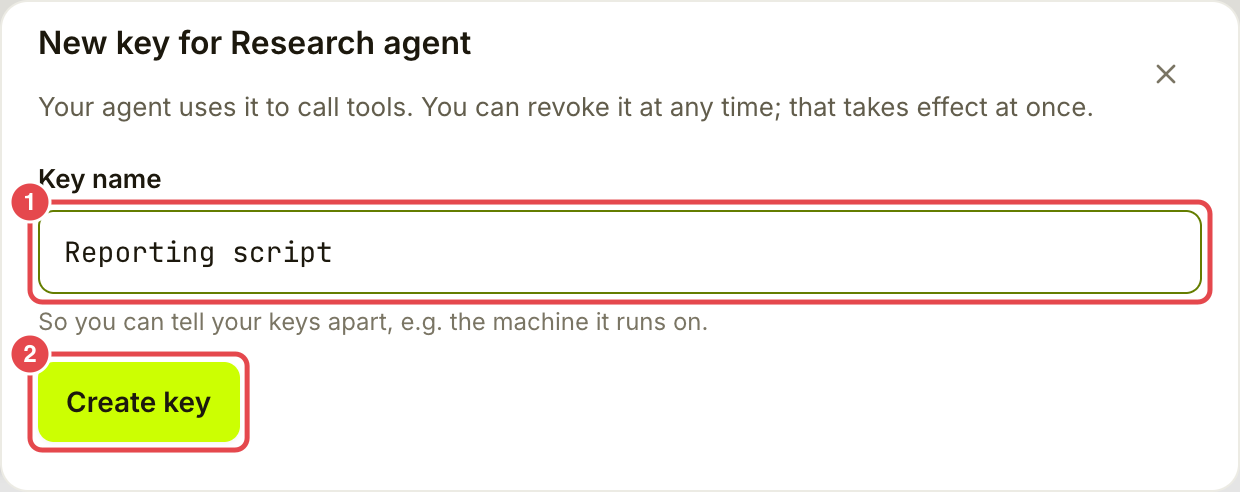
For a program you build, use **Use an API key instead** under the agent's **Keys**, or **New key** if it already has an API key. Enter **Key name** and choose **Create key**.

<figure><img src="https://141356682-files.gitbook.io/~/files/v0/b/gitbook-x-prod.appspot.com/o/spaces%2FAhFBOJnejgrUxXsfscIS%2Fuploads%2Fgit-blob-3c18b5c31059cbaa6524e92cd85b54b3952374a9%2Fmanage-agents-apps-and-keys-3.png?alt=media" alt="Create key drawer with Key name and Create key marked"><figcaption><p>Name the key for the program or machine that will use it.</p></figcaption></figure>

Copy the full key immediately and store it securely. It is **shown once**; Assay cannot show it again. If you lose it, create a replacement and revoke the old key. Use the connection details for **My own code** described in [Connect your AI app](/use-tools/get-started/connect-your-ai-app.md). Your program also needs to sign payments to use paid tools.

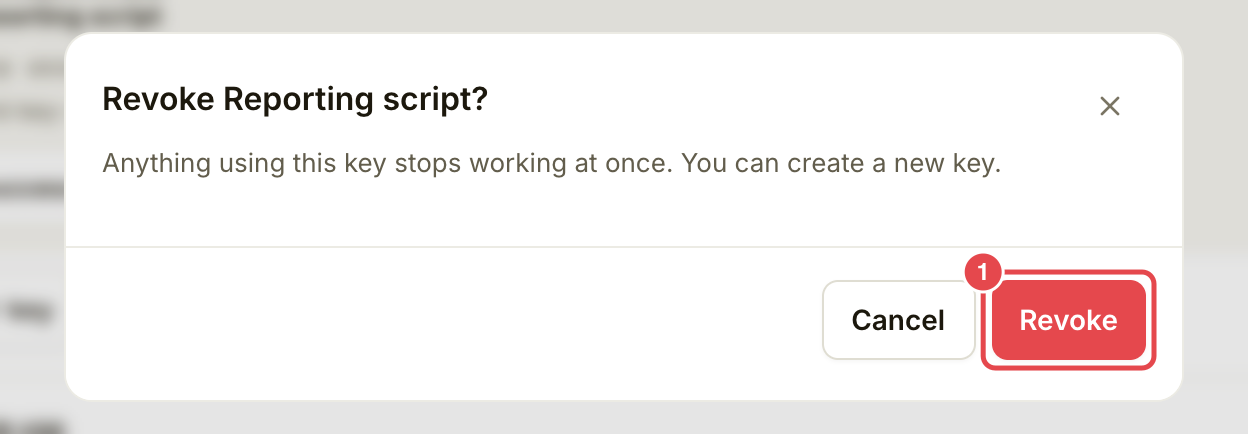
To revoke it, find its API-key row under **Keys**, choose **Revoke** and review the confirmation. If it has active payment permission, complete the separate on-chain stop too. A new API key does not cancel an older key.

<figure><img src="https://141356682-files.gitbook.io/~/files/v0/b/gitbook-x-prod.appspot.com/o/spaces%2FAhFBOJnejgrUxXsfscIS%2Fuploads%2Fgit-blob-bec85c222f8fce86b843ea39f62b5149cfe4ad5a%2Fmanage-agents-apps-and-keys-4.png?alt=media" alt="Revoke Reporting script confirmation with Revoke marked"><figcaption><p>Check the key name before revoking. This example was cancelled.</p></figcaption></figure>

</details>

## Go further

* [Set limits and rules](/use-tools/advanced/set-limits-and-rules.md)
* [Manage alerts and review account history](/use-tools/everyday-use/alerts-and-account-history.md)

## Next

* [Withdraw funds](/use-tools/manage-your-account/withdraw-funds.md)


---

# Agent Instructions
This documentation is published with GitBook. GitBook is the documentation platform designed so that both humans and AI agents can read, navigate, and reason over technical content effectively. Learn more at gitbook.com.

## Querying This Documentation
If you need additional information that is not directly available in this page, you can query the documentation by asking a question.

Perform an HTTP GET request on the following URL with the `ask` and `goal` query parameters:

```
GET https://docs.goassay.ai/use-tools/advanced/manage-agents-apps-and-keys.md?ask=<question>&goal=<user_goal>
```

`ask` is the immediate question: it should be specific, self-contained, and written in natural language.
`goal` is what the user is ultimately trying to achieve, the reason they need the answer. Sharing it helps GitBook give you a better, more relevant answer. A goal is most helpful when it describes the outcome the user wants rather than restating the question. For example, with `ask=how do I create an API token`, a goal like `automate deployments from our CI pipeline` lets GitBook tailor the answer to that use case.

The response will contain a direct answer to the question and relevant excerpts and sources from the documentation.

Use this mechanism when the answer is not explicitly present in the current page, you need clarification or additional context, or you want to retrieve related documentation sections.