> For the complete documentation index, see [llms.txt](https://docs.goassay.ai/llms.txt). Markdown versions of documentation pages are available by appending `.md` to page URLs; this page is available as [Markdown](https://docs.goassay.ai/use-tools/advanced/create-and-share-toolsets.md).

# Create and share tool sets

Put selected tools behind one MCP connection and choose who can use each published version.

A **tool set** groups tools behind its own MCP server URL. Start with a private set for your team. Share a frozen version when you want other people to use it.

{% hint style="info" %}
**Before you start:** you should already [connect your AI app](/use-tools/get-started/connect-your-ai-app.md) and know how to [find tools](/use-tools/everyday-use/find-tools.md). A tool set does not add funds or permission to pay.
{% endhint %}

## Steps

{% stepper %}
{% step %}

### Start an empty tool set

Open **Controls → Tool sets**. Choose **New tool set**. If this is your first set and your agent has already made calls, the button reads **Start empty**, next to **Start from tools you've used**.

<figure><img src="https://141356682-files.gitbook.io/~/files/v0/b/gitbook-x-prod.appspot.com/o/spaces%2FAhFBOJnejgrUxXsfscIS%2Fuploads%2Fgit-blob-b0f276bb0aaf35d1c7010aa81610c0189faf2eec%2Fcreate-and-share-toolsets-1.png?alt=media" alt="Tool sets page with New tool set marked"><figcaption><p>Start a new set to choose the tools yourself.</p></figcaption></figure>
{% endstep %}

{% step %}

### Name it

Enter **Name** and choose **Create**. The address comes from the name. Renaming later keeps that address.

<figure><img src="https://141356682-files.gitbook.io/~/files/v0/b/gitbook-x-prod.appspot.com/o/spaces%2FAhFBOJnejgrUxXsfscIS%2Fuploads%2Fgit-blob-ffdf759569c73cb39cccd7b40a3d729f454432e6%2Fcreate-and-share-toolsets-2.png?alt=media" alt="New tool set form with Name and Create marked"><figcaption><p>Create the private set before adding tools.</p></figcaption></figure>
{% endstep %}

{% step %}

### Choose its tools

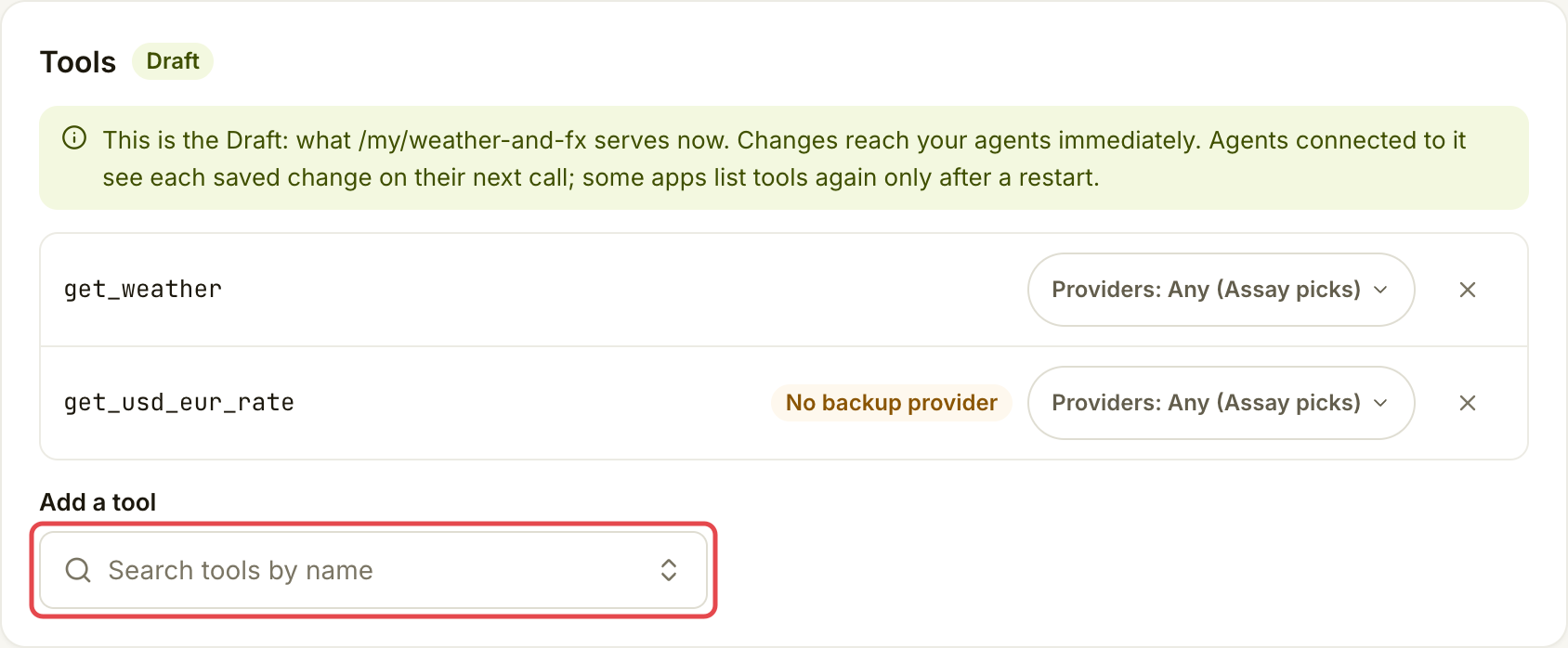
Under **Tools → Draft**, use **Add a tool** to find and select each tool. Each selection saves immediately. Keep **Providers: Any (Assay picks)** for the simplest setup.

The Draft is the live selection served to your team's unlocked connection. Saved edits reach it on the next call; some apps need a restart to refresh their tool list.

<figure><img src="https://141356682-files.gitbook.io/~/files/v0/b/gitbook-x-prod.appspot.com/o/spaces%2FAhFBOJnejgrUxXsfscIS%2Fuploads%2Fgit-blob-53babf7d7777799e72138971fa289af32a9a187c%2Fcreate-and-share-toolsets-3.png?alt=media" alt="Draft editor containing weather and currency tools with Add a tool marked"><figcaption><p>Add tools to the Draft; each selection saves immediately.</p></figcaption></figure>
{% endstep %}

{% step %}

### Save a private version

Choose **Share**. Keep **Only my team** selected, edit the version notes if you like and choose **Save as v1**. This saves a frozen copy without making it public. Later versions use the next version number.

<figure><img src="https://141356682-files.gitbook.io/~/files/v0/b/gitbook-x-prod.appspot.com/o/spaces%2FAhFBOJnejgrUxXsfscIS%2Fuploads%2Fgit-blob-013fbfbb3f5a1cccc05b45ccb0c56ccd72e8bbd6%2Fcreate-and-share-toolsets-4.png?alt=media" alt="Share drawer with Only my team and Save as v1 marked"><figcaption><p>Save a frozen version while keeping the set private.</p></figcaption></figure>
{% endstep %}

{% step %}

### Connect your app to the set

Choose **Use this tool set** at the top of the set's page. Use the instructions for your app in [Connect your AI app](/use-tools/get-started/connect-your-ai-app.md), with this set selected instead of **Everything**. Copy the full URL or configuration the app shows.

<figure><img src="https://141356682-files.gitbook.io/~/files/v0/b/gitbook-x-prod.appspot.com/o/spaces%2FAhFBOJnejgrUxXsfscIS%2Fuploads%2Fgit-blob-c2c5db6b3bcd6f0e1b43ed13f18c182786e46a22%2Fcreate-and-share-toolsets-5.png?alt=media" alt="Tool set connection card with Use this tool set marked"><figcaption><p>Open the connection instructions for this set.</p></figcaption></figure>

<figure><img src="https://141356682-files.gitbook.io/~/files/v0/b/gitbook-x-prod.appspot.com/o/spaces%2FAhFBOJnejgrUxXsfscIS%2Fuploads%2Fgit-blob-bd6cd46f451ac32f2766e39f125a8eadf1f7bb25%2Fcreate-and-share-toolsets-6.png?alt=media" alt="Connection selection with Weather and FX selected under One of my tool sets"><figcaption><p>Check that your set is selected before following your app’s instructions.</p></figcaption></figure>

Your team's URL ends in `/my/your-set-address`. It serves the live Draft. To keep a stable selection, expand the saved version under **Versions** and use **Copy v1 URL** instead. Its ending is `/my/your-set-address@1`.

You can connect the set beside **Everything** or replace that connection. Keeping **Everything** still gives the app a way to discover tools outside the set; a set alone does not restrict the agent on its other connections.

{% hint style="warning" %}
Paid tools in this set work only after you allow its URL for paid calls on your computer. Run the extra command shown on **Connect** under **Or let it also allow this URL for paid calls:**, or run `npx -y @goassay-ai/mcp allow-paid '<the set's URL>'`. Only **Everything** can pay without this step.
{% endhint %}
{% endstep %}
{% endstepper %}

## Check it worked

The selected tools appear under **Tools**, and **Versions** contains the saved copy. Ask your connected app to use a free tool from the set. Check its receipt as described in [Check your spending](/use-tools/everyday-use/check-your-spending.md).

<figure><img src="https://141356682-files.gitbook.io/~/files/v0/b/gitbook-x-prod.appspot.com/o/spaces%2FAhFBOJnejgrUxXsfscIS%2Fuploads%2Fgit-blob-e4e064dabd6d7d432d4c348a8f82e7dec5ec89f1%2Fcreate-and-share-toolsets-7.png?alt=media" alt="Versions card showing the first saved version and the newer version"><figcaption><p>Versions keeps the frozen copies of your Draft.</p></figcaption></figure>

## If something goes wrong

| You see                          | Do this                                                                                                              |
| -------------------------------- | -------------------------------------------------------------------------------------------------------------------- |
| **No provider yet**              | Choose an available tool. The add-tool picker does not let you add a tool with no provider.                          |
| The address was taken            | Review the alternative address offered before creating the set.                                                      |
| **Nothing changed** in Share     | Edit the Draft before publishing another version.                                                                    |
| An app still sees the old tools  | Check whether its URL is locked to a version. For a live Draft connection, restart the app to refresh its tool list. |
| **No provider fits your limits** | Review the set's provider rules and the agent's restrictions; both must allow the call.                              |

<details>

<summary>Optional: share a version outside your team</summary>

Open **Share** and choose who can connect. Sharing publishes the next frozen version.

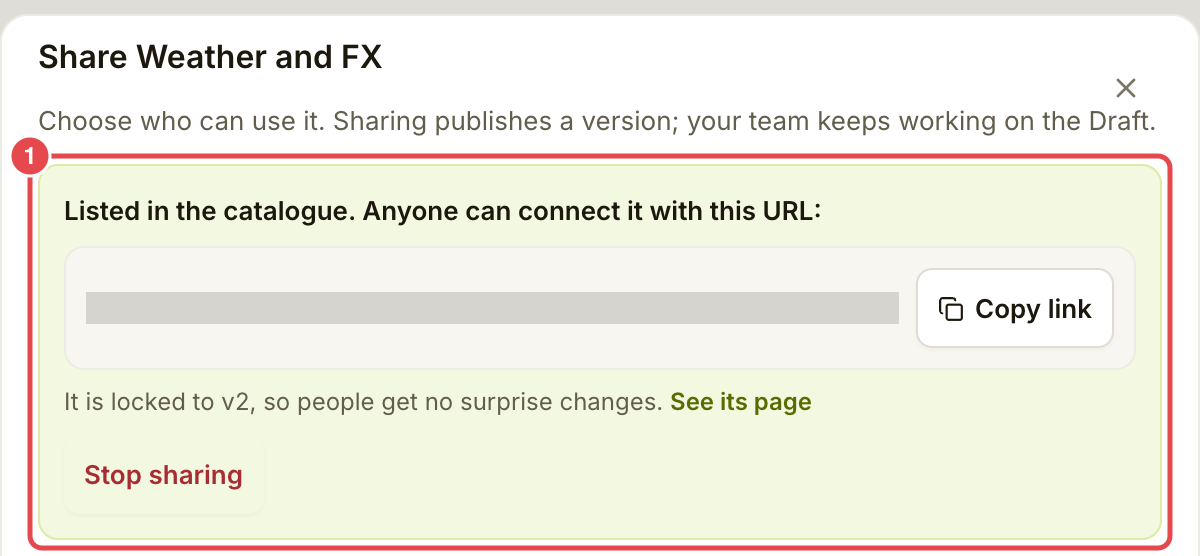
Choose Anyone with the link. The set stays out of the catalogue. Anyone who has the link can connect it, so keep the link within your intended audience.Choose Listed in the catalogue. Anyone can find and connect the set.

If asked for **Your public name**, choose the handle shown as `@your-team`. Both sharing choices identify the publisher. Use 3–24 lowercase letters, digits or hyphens, starting with a letter. You can change the name only until your first share.

<figure><img src="https://141356682-files.gitbook.io/~/files/v0/b/gitbook-x-prod.appspot.com/o/spaces%2FAhFBOJnejgrUxXsfscIS%2Fuploads%2Fgit-blob-4c37449b8c9218d44388e0a7bc92f4f5678ca3c3%2Fcreate-and-share-toolsets-8.png?alt=media" alt="First-share public name prompt filled with northwind"><figcaption><p>Choose the publisher name before your first share.</p></figcaption></figure>

Read the notes and the outcome, then choose **Claim the name and share v1** or **Share v1**, with the version number shown. Send the resulting shared link. A public MCP URL uses `/@your-team/your-set-address@1`; a link-only URL uses `/u/private-link-code@1`. Use the full URL Assay supplies, including its version.

<figure><img src="https://141356682-files.gitbook.io/~/files/v0/b/gitbook-x-prod.appspot.com/o/spaces%2FAhFBOJnejgrUxXsfscIS%2Fuploads%2Fgit-blob-2b79f835397e8ca95bb5f400896abd8a1e34a4ce%2Fcreate-and-share-toolsets-9.png?alt=media" alt="Share drawer confirming that the tool set is listed in the catalogue and locked to its version"><figcaption><p>This set saved v1 privately and shared v2. The shared connection stays on v2 until the reader updates.</p></figcaption></figure>

If the name needs another account step first, follow the action shown and return to try again. Do not assume that filling the name has claimed it or published the set.

</details>

<details>

<summary>Optional: update people who use your set</summary>

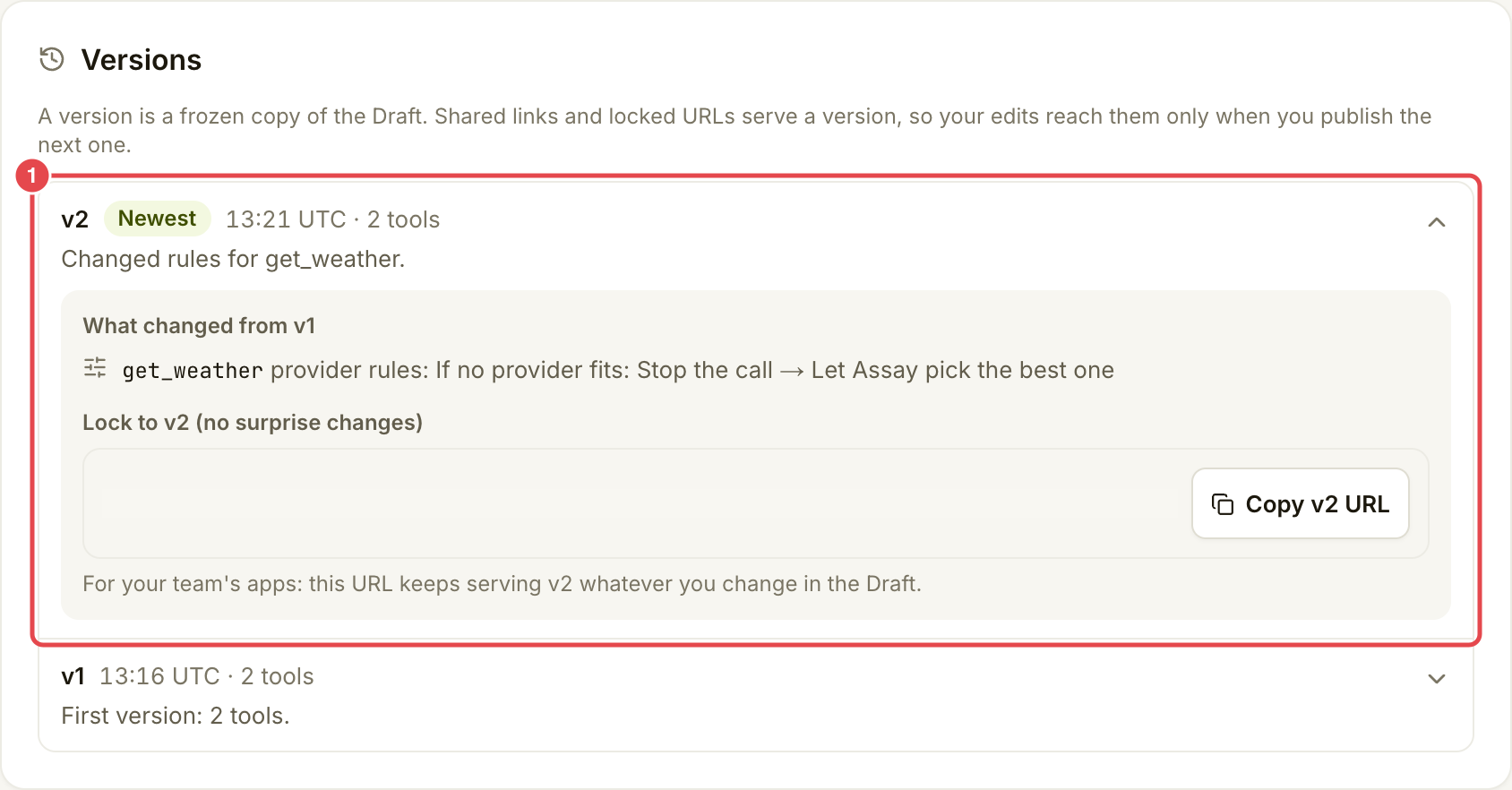
Edit the Draft, then open **Share**, review what changed and publish the next version. Your edits do not change an existing frozen version.

<figure><img src="https://141356682-files.gitbook.io/~/files/v0/b/gitbook-x-prod.appspot.com/o/spaces%2FAhFBOJnejgrUxXsfscIS%2Fuploads%2Fgit-blob-644bd6672ea783c95c288b64edb1e7d066de93eb%2Fcreate-and-share-toolsets-10.png?alt=media" alt="Expanded version showing the provider-rule change from v1 and Copy v2 URL"><figcaption><p>Expand a version to compare changes to get_weather and find its locked URL.</p></figcaption></figure>

People using a locked URL keep their version until they open **Controls → Agents**, find the set under **Servers in use** and choose **Update available**. They then review the changes, copy the new version URL and replace the old URL in their app. Copying alone does not change their app. If the agent's allowed tools are also locked to the old version, **Let this agent use v2's tools** updates that permission separately; it does not replace the app's URL.

On **Connect**, open **More options** and choose **Always latest** under **Version** to remove the URL's version lock. Choose it only if you want future published versions automatically. A separate lock on the agent's allowed tools can still refuse newly added tools.

</details>

<details>

<summary>Optional: change provider rules</summary>

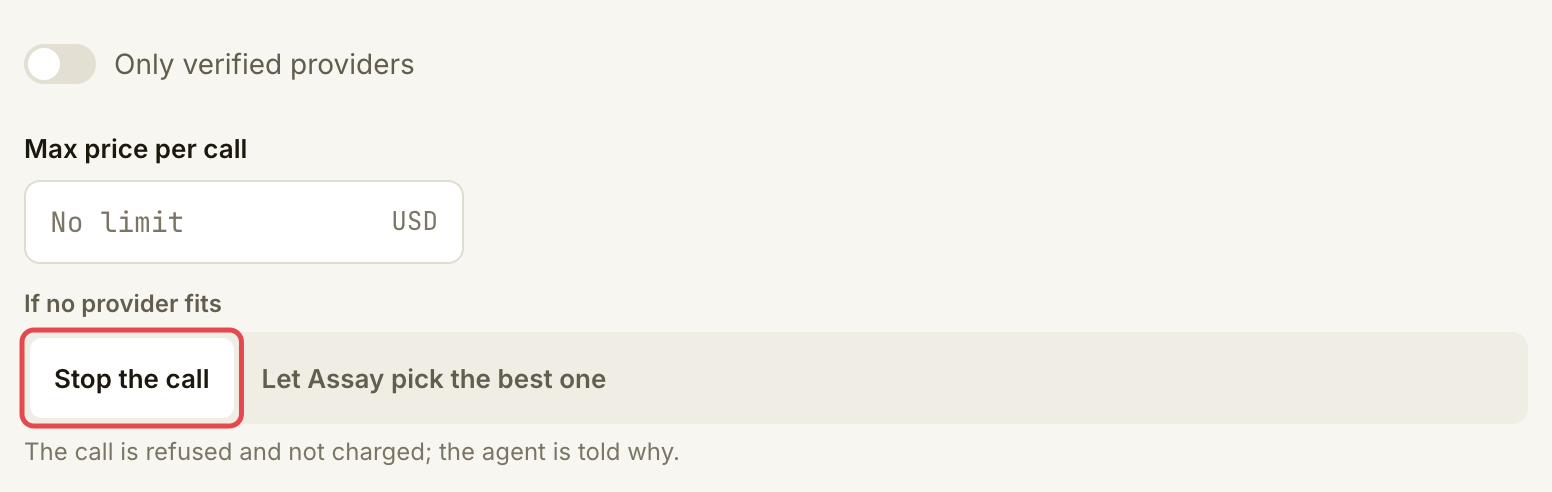
Open a tool's **Providers** control. Use **Only these** or **All except**, **Only verified providers** or a maximum price when needed. Review what happens when no provider fits: **Stop the call** preserves the restriction; **Let Assay pick the best one** allows a fallback beyond the selected provider list. Apply the change to save it to the Draft.

<figure><img src="https://141356682-files.gitbook.io/~/files/v0/b/gitbook-x-prod.appspot.com/o/spaces%2FAhFBOJnejgrUxXsfscIS%2Fuploads%2Fgit-blob-09eb8432a088055f370c1c3bcf647ffb5bab1b56%2Fcreate-and-share-toolsets-11.png?alt=media" alt="Provider-rule editor with Stop the call selected and marked"><figcaption><p>Read the provider choice and fallback together before applying a rule.</p></figcaption></figure>

</details>

## Go further

* [Find tools](/use-tools/everyday-use/find-tools.md)
* [Fix a paused or refused payment](/use-tools/when-something-goes-wrong/fix-a-payment-problem.md)

## Next

* [Set limits and rules](/use-tools/advanced/set-limits-and-rules.md)


---

# Agent Instructions
This documentation is published with GitBook. GitBook is the documentation platform designed so that both humans and AI agents can read, navigate, and reason over technical content effectively. Learn more at gitbook.com.

## Querying This Documentation
If you need additional information that is not directly available in this page, you can query the documentation by asking a question.

Perform an HTTP GET request on the following URL with the `ask` and `goal` query parameters:

```
GET https://docs.goassay.ai/use-tools/advanced/create-and-share-toolsets.md?ask=<question>&goal=<user_goal>
```

`ask` is the immediate question: it should be specific, self-contained, and written in natural language.
`goal` is what the user is ultimately trying to achieve, the reason they need the answer. Sharing it helps GitBook give you a better, more relevant answer. A goal is most helpful when it describes the outcome the user wants rather than restating the question. For example, with `ask=how do I create an API token`, a goal like `automate deployments from our CI pipeline` lets GitBook tailor the answer to that use case.

The response will contain a direct answer to the question and relevant excerpts and sources from the documentation.

Use this mechanism when the answer is not explicitly present in the current page, you need clarification or additional context, or you want to retrieve related documentation sections.