> For the complete documentation index, see [llms.txt](https://docs.goassay.ai/llms.txt). Markdown versions of documentation pages are available by appending `.md` to page URLs; this page is available as [Markdown](https://docs.goassay.ai/list-your-api/get-started/set-up-your-account.md).

# Set up your account and wallet

Add your business contacts, prove your payout wallet and connect your API.

Set up the business that will serve tools on Assay. You need a public HTTPS API and a wallet to receive USDG on Robinhood Chain.

## Steps

{% stepper %}
{% step %}

### Sign in

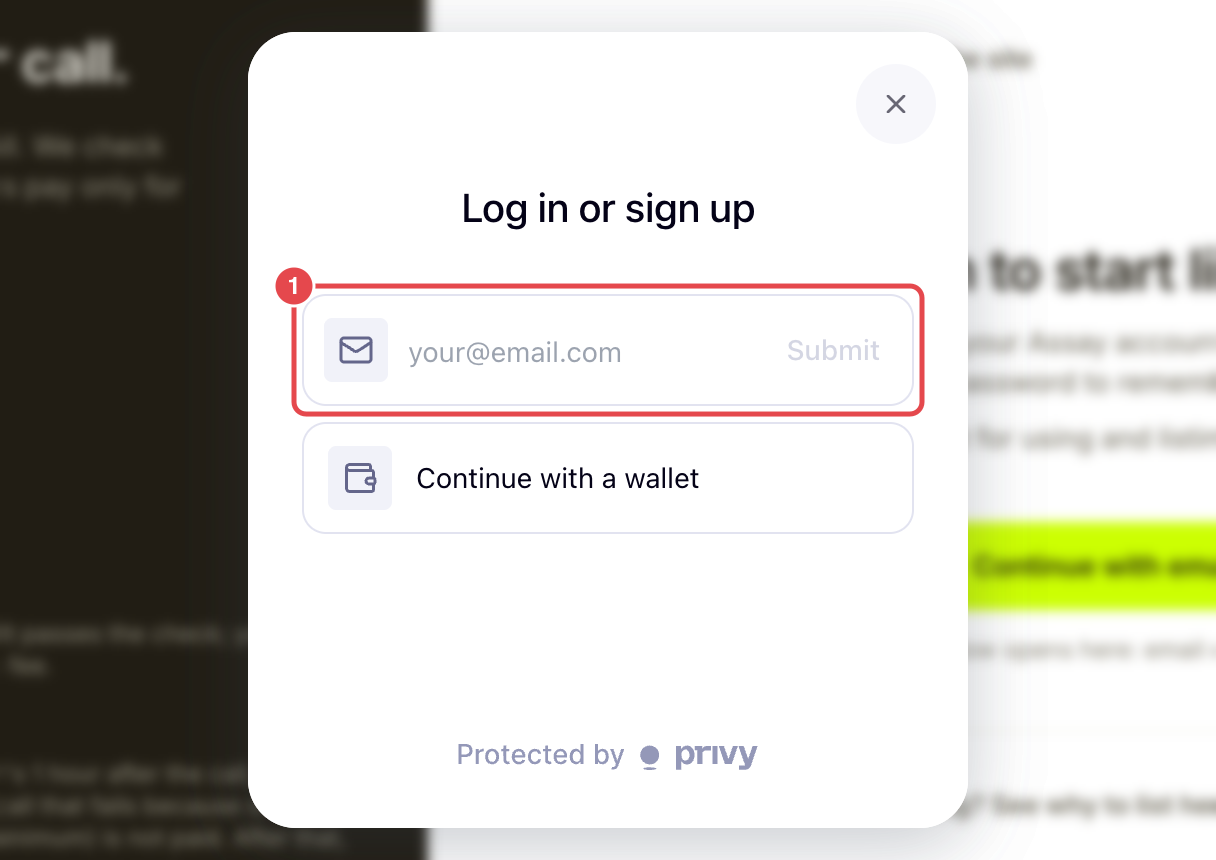
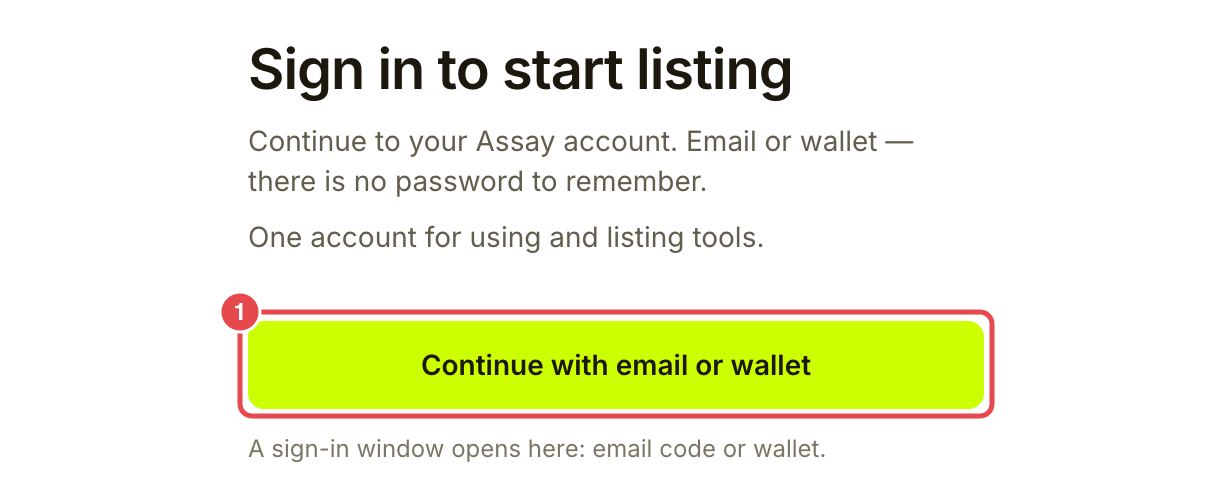
Open the provider console and choose **Continue with email or wallet**. Use your business's sign-in method to finish in the sign-in window.

<figure><img src="https://1949348494-files.gitbook.io/~/files/v0/b/gitbook-x-prod.appspot.com/o/spaces%2FjpdpV7qPs81FjbSH4zm1%2Fuploads%2Fgit-blob-4016da6050d61054ff23dbd7c204f3ecbfcbb380%2Fset-up-your-account-1.png?alt=media" alt="Provider sign-in page with Continue with email or wallet marked"><figcaption><p>Sign in to the provider console.</p></figcaption></figure>

<figure><img src="https://1949348494-files.gitbook.io/~/files/v0/b/gitbook-x-prod.appspot.com/o/spaces%2FjpdpV7qPs81FjbSH4zm1%2Fuploads%2Fgit-blob-3f223a2449fb58a1bdb71a5560c1908ef3889734%2Fset-up-your-account-2.png?alt=media" alt="Sign-in window with the email field marked and Continue with a wallet below"><figcaption><p>Finish with your email or wallet.</p></figcaption></figure>
{% endstep %}

{% step %}

### Add your contacts

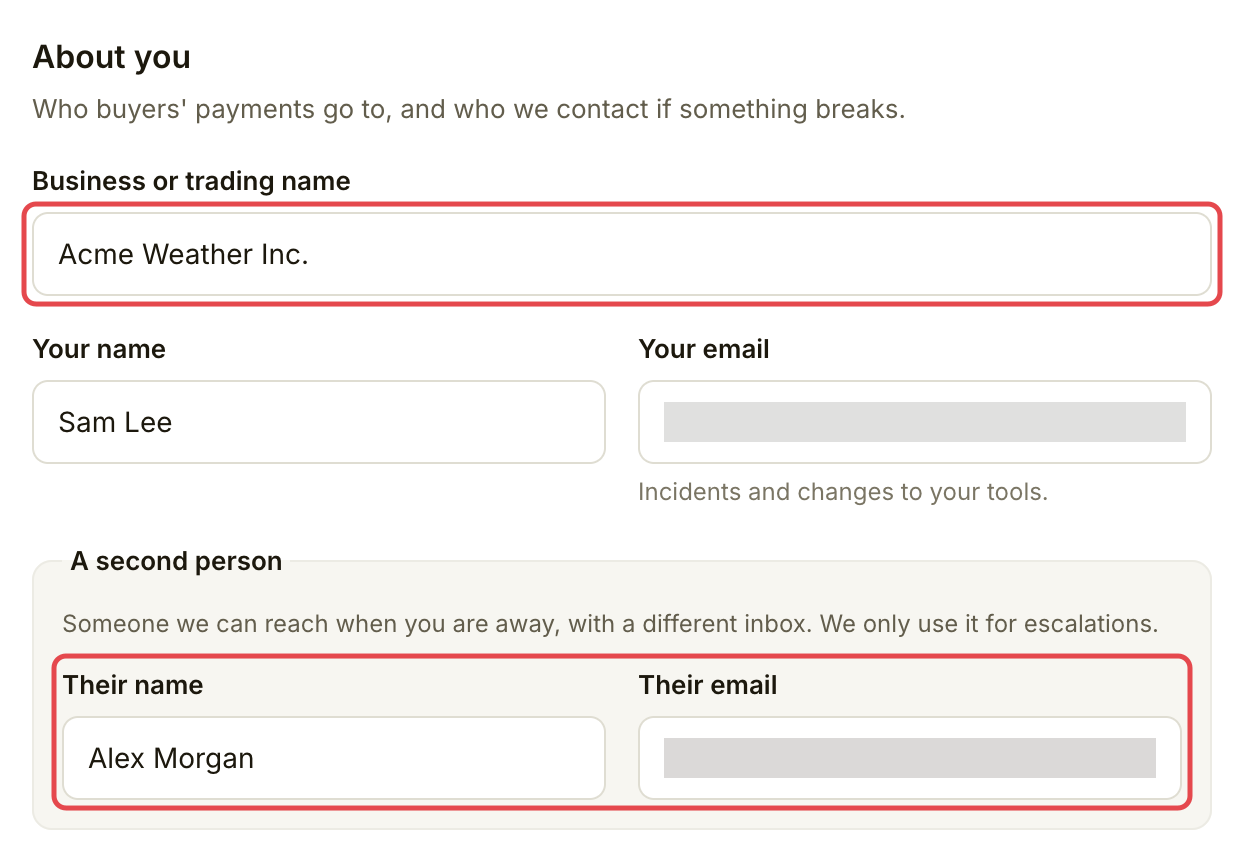
On **Home**, find **Get listed** and choose **Start** under **Create your provider account**. Under **You**, enter your **Business or trading name**, **Your name** and **Your email**. Add **A second person** with a different email inbox for escalations.

<figure><img src="https://1949348494-files.gitbook.io/~/files/v0/b/gitbook-x-prod.appspot.com/o/spaces%2FjpdpV7qPs81FjbSH4zm1%2Fuploads%2Fgit-blob-50c627d730c10a3abdff5a69fd2db3641a2e9f94%2Fset-up-your-account-3.png?alt=media" alt="About you form with the business name and second contact marked, and emails blurred"><figcaption><p>Name your business and the people Assay can reach.</p></figcaption></figure>
{% endstep %}

{% step %}

### Read and accept the terms

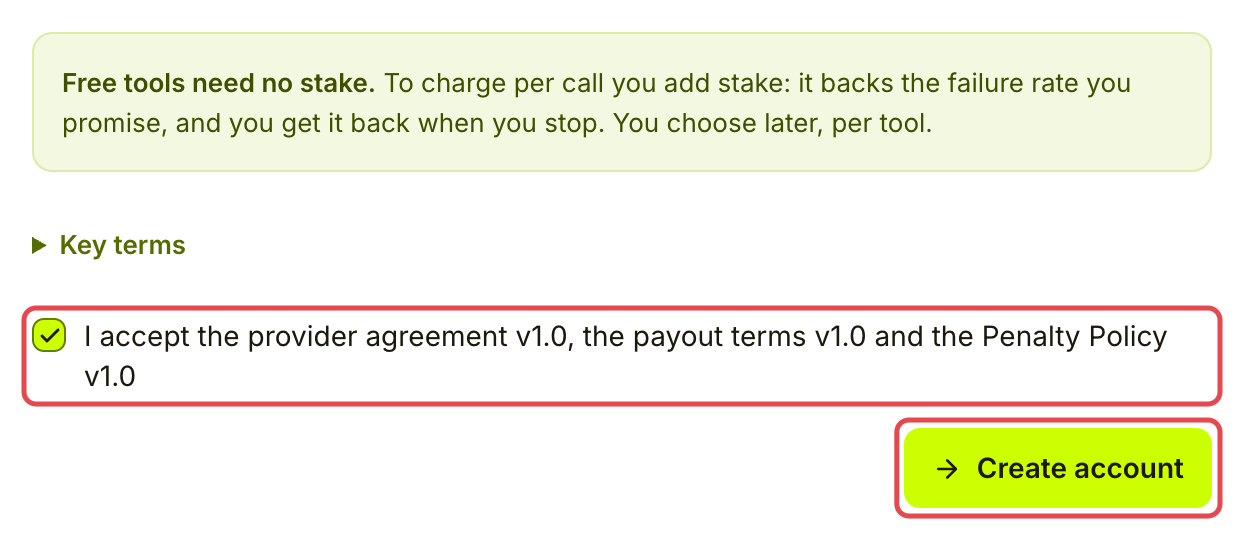
Check the time zone used for deadline emails. The console shows times in UTC. Open **Key terms** to read the fee, payout, stake and penalty terms. Then tick the box accepting the provider agreement, payout terms and penalty policy, and choose **Create account**. If you are updating an existing account, use **Save and continue**; unchanged details show **Continue**.

Free tools need no stake. Stake is money you lock to back the failure rate you promise on paid tools. Under the current terms, a paid listing needs at least $50 or 1,000 calls at its price, whichever is more. A breach can cost part of your stake. Read the terms before committing.

<figure><img src="https://1949348494-files.gitbook.io/~/files/v0/b/gitbook-x-prod.appspot.com/o/spaces%2FjpdpV7qPs81FjbSH4zm1%2Fuploads%2Fgit-blob-91266c5aeefe995337708a5d55cf67dde4280929%2Fset-up-your-account-4.png?alt=media" alt="New account terms with an active checked acceptance box and Create account marked"><figcaption><p>Review and accept the terms before creating your account.</p></figcaption></figure>
{% endstep %}

{% step %}

### Prove your payout wallet

In **Get paid**, choose **Connect wallet** and connect the wallet your business will receive payments in. Check that it is the right wallet on Robinhood Chain, then choose **Sign a message (free)** and approve the message in your wallet. This proves ownership and moves no money. Choose **Continue** when the wallet is accepted.

This step needs your wallet. Check the address yourself before signing; a sign-in alone does not set your payout address.
{% endstep %}

{% step %}

### Check your API address

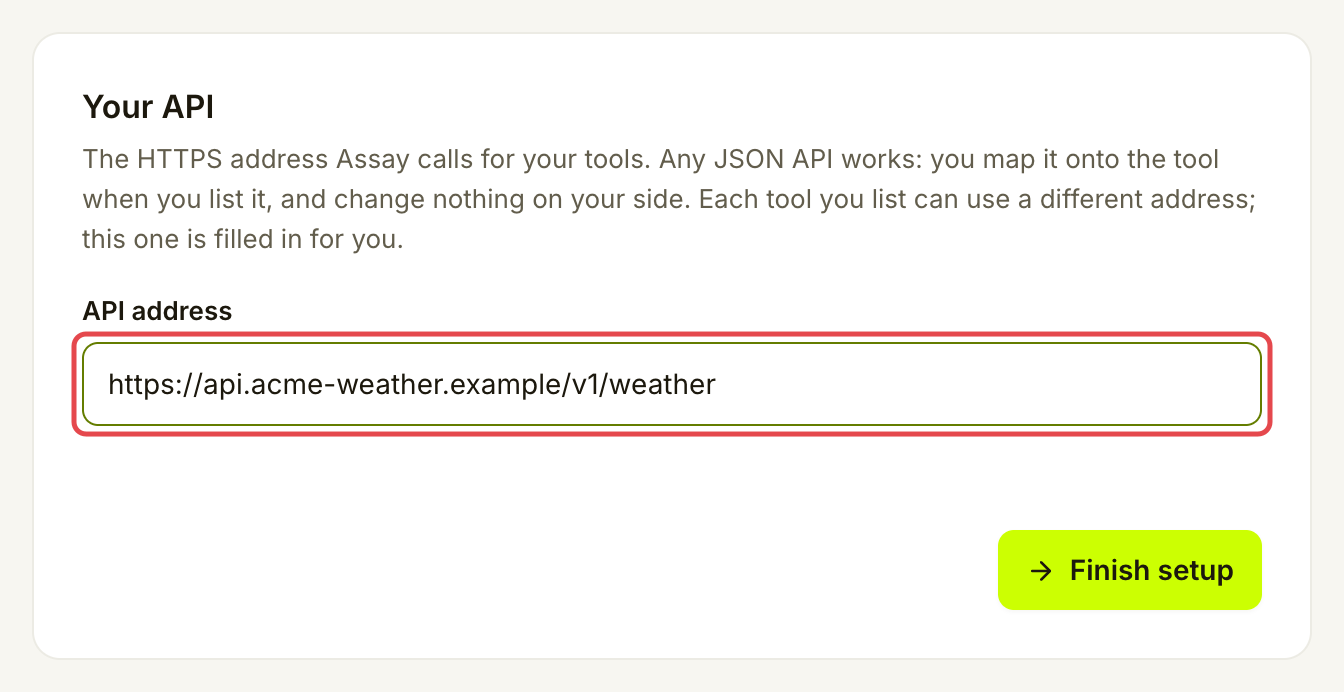
In **Your API**, enter the public HTTPS address Assay should call. Leave the field to let Assay check that it can reach your API. Any response counts, even "not authorised". Then choose **Finish setup**. This address is filled in when you create a listing; each listing can use a different address.

<figure><img src="https://1949348494-files.gitbook.io/~/files/v0/b/gitbook-x-prod.appspot.com/o/spaces%2FjpdpV7qPs81FjbSH4zm1%2Fuploads%2Fgit-blob-6c0a27817351415028c7e33070eecffb2809a063%2Fset-up-your-account-5.png?alt=media" alt="Your API setup card with the API address field marked"><figcaption><p>Check that Assay can reach your API.</p></figcaption></figure>
{% endstep %}
{% endstepper %}

## Check it worked

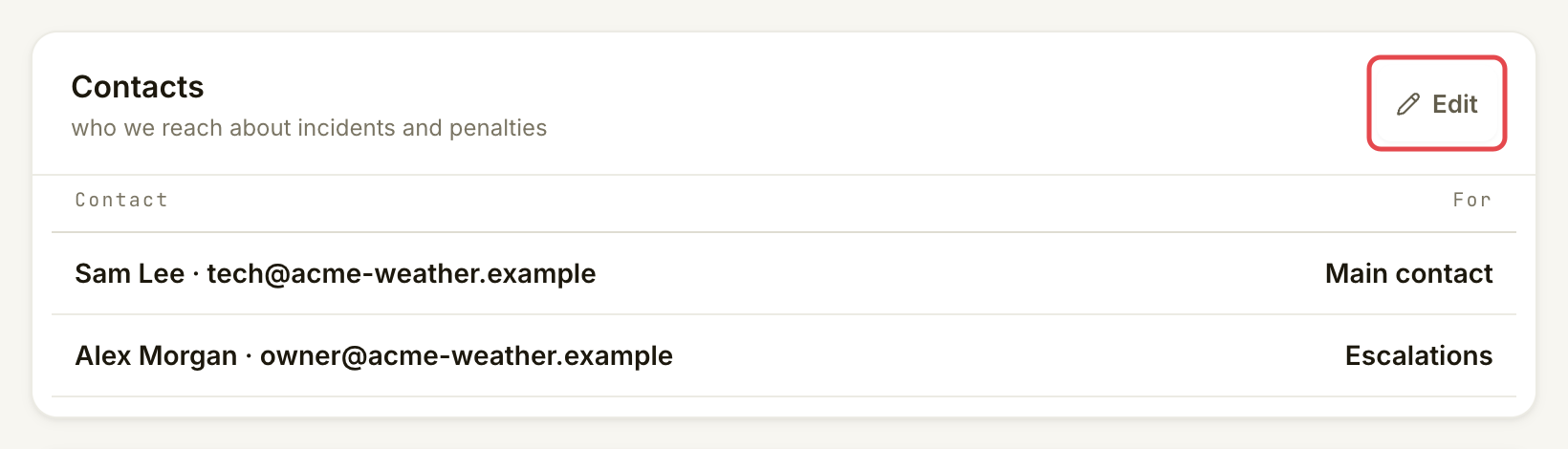
Your setup reaches **You are set up**. If you already have listings, the same page is called **How earning, stake and penalties work**. In **Account**, check **Contacts**; **Edit** brings you back to setup. **Public name and payout wallet** shows where earnings will go.

<figure><img src="https://1949348494-files.gitbook.io/~/files/v0/b/gitbook-x-prod.appspot.com/o/spaces%2FjpdpV7qPs81FjbSH4zm1%2Fuploads%2Fgit-blob-e33cc887f7c3ca3bb897437f1258e59c4dc9c6c9%2Fset-up-your-account-6.png?alt=media" alt="Account Contacts card with Edit marked"><figcaption><p>Keep the contacts on file up to date.</p></figcaption></figure>

Before a listing can go live, it needs a saved connection, the required API authentication and a passing test. Paid listings also need enough stake. Adding stake requires your wallet, USDG for the stake and ETH for network fees; the publishing screen shows the amount required. You do not need to add stake just to complete account setup.

## If something goes wrong

| You see                               | Do this                                                                              |
| ------------------------------------- | ------------------------------------------------------------------------------------ |
| The second email is refused           | Use a different inbox from your main contact.                                        |
| You cannot continue past **Get paid** | Connect the intended payout wallet and finish its ownership message.                 |
| You declined the wallet message       | Try the message again when you are ready.                                            |
| The API cannot be reached             | Check that the address uses HTTPS, is public and responds from outside your network. |

## Next

* [List a catalogue tool](/list-your-api/get-started/list-a-catalogue-tool.md)


---

# Agent Instructions
This documentation is published with GitBook. GitBook is the documentation platform designed so that both humans and AI agents can read, navigate, and reason over technical content effectively. Learn more at gitbook.com.

## Querying This Documentation
If you need additional information that is not directly available in this page, you can query the documentation by asking a question.

Perform an HTTP GET request on the following URL with the `ask` and `goal` query parameters:

```
GET https://docs.goassay.ai/list-your-api/get-started/set-up-your-account.md?ask=<question>&goal=<user_goal>
```

`ask` is the immediate question: it should be specific, self-contained, and written in natural language.
`goal` is what the user is ultimately trying to achieve, the reason they need the answer. Sharing it helps GitBook give you a better, more relevant answer. A goal is most helpful when it describes the outcome the user wants rather than restating the question. For example, with `ask=how do I create an API token`, a goal like `automate deployments from our CI pipeline` lets GitBook tailor the answer to that use case.

The response will contain a direct answer to the question and relevant excerpts and sources from the documentation.

Use this mechanism when the answer is not explicitly present in the current page, you need clarification or additional context, or you want to retrieve related documentation sections.